
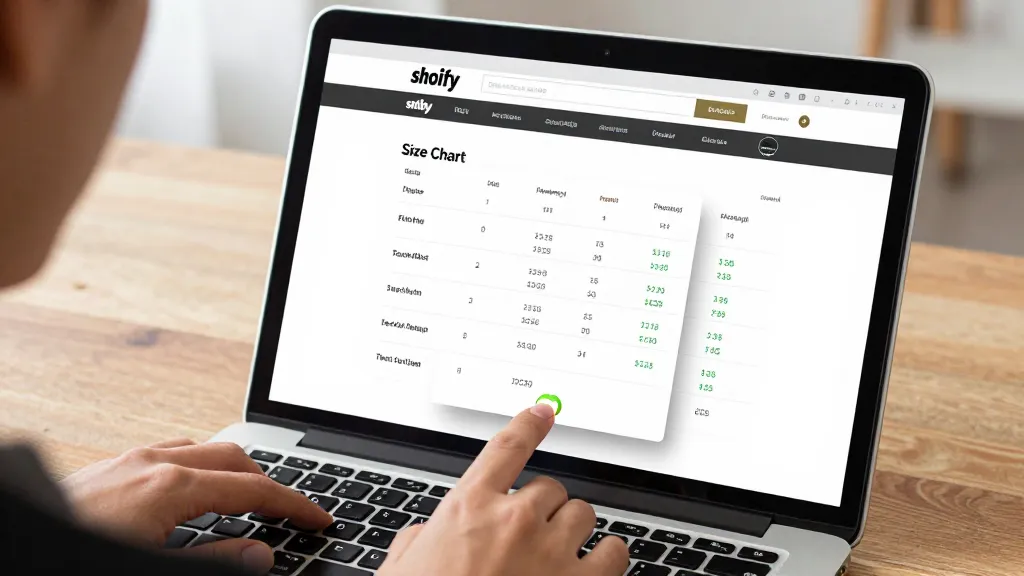
When customers struggle to find the right size for a product, it can lead to high cart abandonment rates and lost sales. A create custom size chart modal with metafields can help bridge this gap by offering accurate sizing information directly on product pages. By integrating dynamic size charts into your Shopify store, you can enhance the shopping experience and reduce return rates. This article guides you through the process of building a custom size chart modal using metafields, ensuring your data is flexible and easy to maintain.
We’ll start by exploring why a custom size chart modal is essential for improving conversion rates and how metafields provide the perfect foundation for dynamic content. Next, you’ll learn how to set up metafields, build the modal using Liquid and HTML, and ensure it works seamlessly across your product pages.
Finally, we’ll cover best practices for designing and maintaining your size chart modal, along with alternative approaches like drawers. You’ll also discover how to integrate the modal with page references to boost accessibility and SEO. Whether you’re a store owner or a developer, these insights will help you create a more engaging and conversion-driven product experience.
Why a Custom Size Chart Modal Matters for Conversion
A custom size chart modal is a powerful tool for Shopify store owners aiming to enhance product page conversions. By providing customers with accurate sizing information, it reduces uncertainty and helps them make informed purchasing decisions, directly impacting cart abandonment rates. Integrating this modal with metafields allows for dynamic, product-specific data, ensuring the information remains relevant and up-to-date without the need for manual updates.
Improving Customer Experience with Accurate Sizing
Accurate sizing information is crucial for customers who are unsure about their fit, especially with products that vary in size or style. A size chart modal offers a quick and intuitive way to access this data, allowing shoppers to compare measurements against their own body dimensions. This clarity reduces the likelihood of returns and enhances the overall shopping experience, fostering trust and confidence in the brand.
Why Metafields Are the Best Choice for Dynamic Charts
Metafields provide a flexible and efficient way to store and retrieve size chart data, enabling dynamic content that adapts to each product. Unlike static charts, which can become outdated or irrelevant as product lines evolve, metafields ensure that the information displayed is always aligned with the specific product variant. This approach not only streamlines data management but also allows for personalized and accurate sizing guidance tailored to each item, improving both user experience and conversion rates.
How to Create a Custom Size Chart Modal with Metafields
Creating a custom size chart modal with metafields involves defining the chart structure, accessing the data with Liquid, and building a functional modal that enhances the user experience. This section walks you through the process of setting up metafields and integrating them into a modal.
- Define the structure of your size chart using metafields on the product page.
- Use Liquid to access and display the metafield data in your modal.
- Build a modal using HTML and CSS that appears on product click or page load.
- Test the modal to ensure it works across all device types and browsers.
Setting Up Metafields for Your Size Chart
To set up metafields for your size chart, navigate to the product page in the Shopify admin and add custom metafields under the 'Metafields' tab. Define each size chart entry with clear labels and measurements, ensuring they are organized and easy to reference. For example, you might include fields for chest, waist, and hip measurements for different sizes. This structure allows you to dynamically pull the data into your modal, making it easy to maintain and update.
Building the Modal with Liquid and HTML
Building the modal with Liquid and HTML involves creating a reusable snippet that displays your size chart data. Start by writing a Liquid template that fetches the metafield values and renders them in a table or list format. Use HTML and CSS to style the modal, ensuring it is responsive and visually appealing. You can trigger the modal to appear using JavaScript or by linking it to a product page button, providing a seamless user experience. Testing the modal across different devices and browsers is crucial to ensure compatibility and functionality.
Best Practices for Implementing the Size Chart Modal
A well-designed size chart modal can significantly enhance the shopping experience, but its effectiveness depends on thoughtful implementation. Prioritizing usability, clarity, and ongoing maintenance ensures that the modal remains a helpful tool for customers and an efficient asset for store owners.
Designing a User-Friendly Size Chart Modal
Designing a user-friendly size chart modal requires a balance between functionality and simplicity. Ensure the modal is mobile-friendly by using responsive design principles and testing across devices. Include clear instructions and visual examples, such as size comparisons or body measurements, to help customers make informed decisions. Avoid cluttering the modal with excessive text or images; instead, focus on delivering essential information in an easy-to-digest format. Incorporate intuitive navigation and a clear close button to prevent user frustration and ensure a smooth browsing experience.
Maintaining and Updating Size Chart Data
Maintaining and updating size chart data is crucial for accuracy and customer trust. Regularly review and revise metafields to reflect any changes in sizing guidelines or product specifications. Consider setting up a schedule for updates, especially when new product lines are launched or existing ones are modified. Store owners should also provide a way for customers to report discrepancies or request additional information, which can help identify areas for improvement. By keeping size chart data current and accessible, you ensure that your customers receive the most relevant and reliable information possible.
Alternative Approaches: Drawer vs Modal
When deciding between a modal and a drawer for your size chart, consider how each approach aligns with your brand’s design and user experience goals. While both can be implemented using metafields and Liquid, their usability and visual impact differ significantly.
| Feature | Modal | Drawer |
|---|---|---|
| User Focus | Draws attention to the size chart by overlaying it on the main content. | Maintains focus on the main content while providing additional information in a sidebar. |
| Space Usage | Requires full screen attention and can obscure other elements. | Uses minimal screen space and allows users to keep context while viewing the chart. |
| Information Density | Better for quick reference and simple charts. | Ideal for detailed charts with multiple sizes, measurements, and notes. |
| Accessibility | Can be less accessible for users with cognitive or visual impairments. | Generally more accessible as it remains within the flow of the page. |
| Design Flexibility | Easier to style and integrate with existing page layouts. | Requires more complex styling to match the page design and ensure usability. |
| User Experience | Suitable for one-time reference or decision-making. | Encourages exploration and detailed review of size information. |
Comparing Modal and Drawer UX for Size Charts
The choice between modal and drawer depends on the level of detail required and the user’s intent. A modal is ideal for quick reference and simple size charts, ensuring that users can easily find the information they need without distractions. In contrast, a drawer is better suited for larger size charts that require more detailed information, such as multiple sizes, measurements, and additional notes. Both approaches can be tailored to fit your brand’s design and user experience strategy.
How to Implement a Drawer with Metafields
Implementing a drawer with metafields involves using Liquid to dynamically populate the sidebar content. Start by creating metafields that store your size chart data, then use Liquid to render this data into HTML elements within the drawer. Ensure that the drawer is responsive and accessible, and consider adding a toggle button that allows users to open and close the drawer seamlessly. This method allows for a more integrated user experience while keeping the size chart easily accessible.
Integrating the Modal with Page References
Integrating the size chart modal with page references ensures it is easily accessible to customers while enhancing SEO and user experience. By linking the modal to specific product pages or collections, store owners can provide relevant information at the right time without overwhelming visitors. This approach also allows for better content organization and improved search engine visibility.
Linking the Size Chart Modal to Product Pages
To link the size chart modal to product pages, use page references to dynamically load the modal based on the current product or collection. This can be achieved by assigning a unique identifier to each product or collection and using Liquid to trigger the modal when the page reference matches. Ensure the modal is embedded in a visible location, such as the product description or a dedicated 'Size Guide' section, to guide customers directly to the information they need.
Improving Accessibility and SEO with Page References
Optimizing the modal for SEO involves incorporating relevant metafields and structured data to improve search engine visibility. Include metafields such as 'size_chart_title', 'size_chart_description', and 'size_chart_keywords' to provide context for search engines. Additionally, use schema markup to mark up the size chart content, making it more discoverable in search results. This not only enhances SEO but also ensures the modal is accessible to users who rely on assistive technologies.
Frequently Asked Questions
How can I make the size chart modal appear automatically on product page load?
To make the size chart modal appear automatically, use JavaScript to trigger it on page load. Ensure the modal is hidden by default and use a script to show it when the page finishes loading. This can be done using the 'window.onload' event or by waiting for the DOM to be fully loaded.
What are the best practices for organizing metafield data for size charts?
Organize metafield data by using clear, consistent naming conventions. Store size chart data in a structured format such as JSON, and ensure each product has its own set of metafields. Keep the data simple and avoid redundancy for easier maintenance.
Can I use the same size chart for multiple products?
Yes, you can use the same size chart for multiple products by storing the chart data in a shared metafield. This allows you to reuse the chart across different products without duplicating data. Ensure the chart is accessible through a consistent reference.
How do I ensure the size chart modal is accessible on mobile devices?
Ensure the size chart modal is responsive by using CSS media queries and mobile-friendly design principles. Test the modal on various screen sizes and make sure it is easy to navigate with touch gestures. Provide clear visual cues and ensure keyboard navigation is supported.
Next Steps for a Seamless Shopping Experience
Implementing a custom size chart modal with metafields enhances the user experience and boosts conversion rates. By leveraging dynamic data and flexible design, you can provide accurate sizing information that adapts to your product range.
Start by setting up your metafields and building a responsive modal using Liquid and HTML. Then, integrate it with your product pages to offer a seamless shopping experience. Regularly update and maintain your size chart data to ensure accuracy and relevance.